![FullColor-800px-Aug-04-2025-07-56-16-5066-PM.png]](https://help.agileblue.com/hs-fs/hubfs/FullColor-800px-Aug-04-2025-07-56-16-5066-PM.png?height=32&name=FullColor-800px-Aug-04-2025-07-56-16-5066-PM.png)
Accessing the Threat Exposure Management Module
- Log in to the AgileBlue portal using your credentials.
- From the left sidebar, locate and select Threat Exposure Management.
- The module will load, displaying the Metrics Panel at the top and the Credentials Table below.
Using the Metrics Panel
The Metrics Panel provides a high-level summary of your credential exposure at-a-glance.
The panel displays four metrics: Unique Credentials (total distinct credentials found, with duplicates removed), Total Credentials (raw count across all captured events before deduplication), Remediated Credentials (total credentials marked as remediated, manually or via automated workflow), and Recently Imported (credentials imported within the selected timeframe, defaulting to the last 24 hours).
Adjusting the Recently Imported Timeframe
- Locate the timeframe selector in the Metrics Panel. This is the clock icon next to Imported
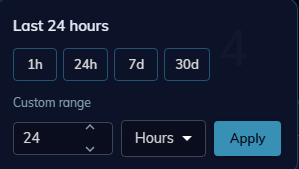
- Select one of the available options: 1 hour, 24 hours (default), 7 days, 30 days, or custom date range.
- The Recently Imported count will update automatically without a full page reload.
Searching for Credentials
The search bar allows you to quickly locate specific credentials across multiple data fields.

- Click inside the search bar at the top of the credentials section.
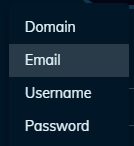
- Enter your search term. The following fields are searched: domain of email, email address, username, password, and URL.
- Results will appear within two seconds. Partial matches are supported for all fields except passwords, which requires an exact match.
Reviewing the Credentials Table
The Credentials Table displays all ingested credentials in a sortable, paginated view. Each row contains the following columns: Imported At (timestamp indicating when the credential was ingested from Flare), Email / Username (the exposed identifier), Password (masked by default - must be explicitly revealed before it can be viewed or copied), Source (origin of the credential exposure, such as a stealer log, data breach, or paste site), and Status (Active, Remediated, or Ignored).
Sorting and Pagination
- Click any column header to sort the table by that column.
- Use the pagination controls at the bottom of the table to navigate through large result sets.
Filtering the Credentials Table
Filters allow you to narrow the Credentials Table to a targeted subset of records. Multiple filters can be applied simultaneously.
Applying Filters
- Locate the filter controls above the Credentials Table.
- Select values from one or more of the available filters: Date Imported (filter by Flare-side ingestion timestamp), Password Policy (filter for credentials that do or do not meet defined password policy criteria such as length, complexity, and reuse), Scope (filter by the scope of the data source), or Source (filter by the origin or type of credential exposure).
- The table updates immediately to display only credentials matching all selected criteria.
- Active filters are visually indicated so you can see what is currently applied at a glance.
- Filter state persists if you refresh the page.
Clearing Filters
- To remove an individual filter, click the X next to that specific filter.
- To remove all filters at once, click Clear All Filters. The table will immediately reset to show all available credentials.

Taking Action on Credentials
Each credential record supports several actions to help you manage exposure and workflow. Groups of 10 or fewer credentials can be bulk remediated or ignored.
Marking a Credential as Remediated
- Locate the credential you want to remediate in the Credentials Table.
- Select the Remediate action for that credential.
- The credential status will update to Remediated. The remediation date and detection history are recorded and visible on the credential record.
Note: A credential marked as Remediated retains that status even if the same credential is later re-ingested from a new source.
Marking a Credential as Ignored
- Locate the credential you want to ignore in the Credentials Table.
- Select the Ignore action for that credential.
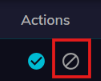
- The credential will be excluded from active dashboards and will no longer trigger alerts.

Note: Ignored credentials remain stored in the system for audit purposes. If an ignored credential is rediscovered, it retains its Ignored status unless manually changed by an authorized user.
Copying a Credential Identifier or Password
- To copy the email or username: click the copy icon next to the identifier. The value will be copied to your clipboard immediately.
- To copy the password: first explicitly reveal the password by clicking the reveal icon, then click the copy icon to copy it to your clipboard.
Note: All copy actions - for both identifiers and passwords - are logged with a timestamp and your user ID.
Generating a Shareable URL
- Open the credential record you want to share.
- Select the Share URL option to generate a secure link to that specific record.

- Copy the generated URL and share it with the intended recipient.
Note: Access to shared URLs is role-aware. Recipients without the required permissions will receive an access-denied response when opening the link.
Exporting Credentials
You can export the credential records currently visible under your applied filters for offline review or reporting.
- Apply any desired filters to the Credentials Table to define the records you want to export.
- Click the Export button.

- Select your preferred export format: CSV or JSON.
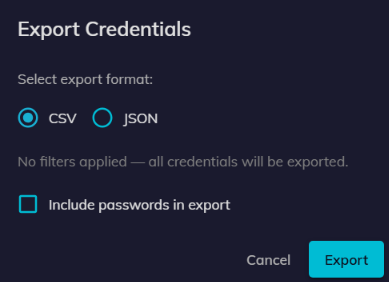
- The exported file will contain all records visible under your current filters.
Note: Password fields in the export remain masked unless your account has explicit export rights. Export always respects all active filter and permission states at the time of export.
Need help?
Contact AgileBlue Support at support@agileblue.com or submit a ticket through the portal.