![FullColor-800px-Aug-04-2025-07-56-16-5066-PM.png]](https://help.agileblue.com/hs-fs/hubfs/FullColor-800px-Aug-04-2025-07-56-16-5066-PM.png?height=32&name=FullColor-800px-Aug-04-2025-07-56-16-5066-PM.png)
Overview
The M365 Security Integration connects your Microsoft 365 environment directly to the AgileBlue Security Operations platform through a guided, self-service configuration walkthrough, providing centralized visibility into audit logs, security incidents, alerts, and identity analytics without requiring manual credential configuration from your team. With support with four Microsoft services and automated secret lifecycle management built in, your integrations remain active and reliable - enabling your team to detect and respond to threats across your Microsoft environment from a single platform.
This article covers:
- Navigating to the Integrations page
- Running the configuration walkthrough
Prerequisites
Before starting the guided configuration walkthrough, confirm the following:
- You have a Global Administrator account in your Microsoft 365 tenant.
- You are logged into the AgileBlue portal with a Host, Partner Analyst (AgileBlue analyst), or Client Administrator account that has access to this feature.
- You know which Microsoft integrations you want to enable (see Supported Integrations below).
Note: A Global Administrator account is required during the Microsoft authentication step. Without it, the Azure app registration and permission consent cannot be completed.
Supported Integrations
The following Microsoft integrations are available for self-service setup:
Integration |
What It Provides |
|
Office365 |
Audit log collection via Office 365 Management APIs; also supports account disablement workflows. |
| Microsoft Defender XDR | Incident and alert data from Microsoft Defender XDR. |
| Microsoft Defender for Endpoint | Host isolation capability and alert data; enables the Host Isolation setting in the portal. Microsoft Defender for Endpoint is available to clients with this integration deployed, or applicable licenses. Availability may vary |
| Microsoft Entra ID Entity Analytics | Identity analytics for your Microsoft Entra ID environment. |
Navigating to the Integrations Page
- Log in to the AgileBlue portal.
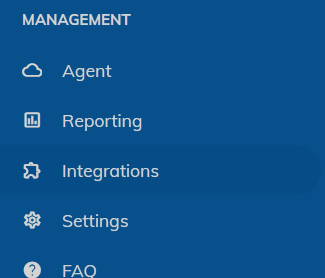
- Expand the left navigation bar and find the Management section.
- Click on “Integrations”.
Setting Up Microsoft 365 Integrations
Step 1 - Select Integrations
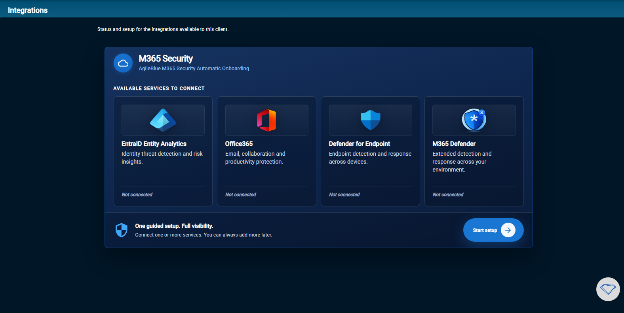
- On the Integrations page, click "Start Setup".
- A checklist of available Microsoft integrations is displayed. Check the box next to each integration you want to enable.
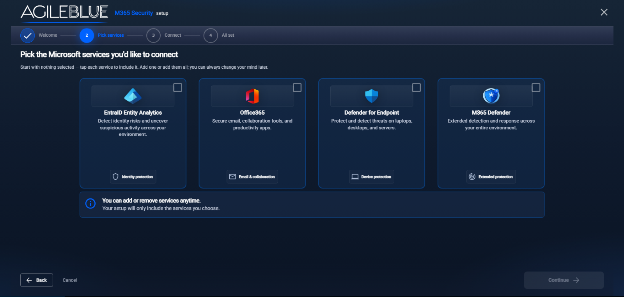
- Click "Continue” after selecting integrations to proceed.
Step 2 - Authenticate with Microsoft
- A Microsoft login popup will appear.
- Sign in using a Global Administrator account for your Microsoft365 tenant.
- Review and accept the permission consent prompt. This authorizes AgileBlue to create an Azure app registration in your tenant named AgileBlue M365 Security and assign the required API permissions for the integrations you selected.
- Once authentication is complete, a progress screen will display while your integrations are being configured in the background. No further action is required.
- After provisioning completes, a confirmation screen will list the integrations that were successfully configured.
Permissions
The following permissions will be automatically requested during the Microsoft integration setup process, and you will be prompted to accept the following:
Defender for Endpoint:
| API Name | Claim Value | Permission |
| Microsoft Graph (2) | ||
| Microsoft Graph |
Application.ReadWrite.All |
Read and write all applications |
| Microsoft Graph |
User.Read |
Sign in and read user profile |
| Microsoft Threat Protection (1) | ||
|
Microsoft Threat Protection |
Incident.ReadWrite.All |
Read and write all incidents |
| WindowsDefenderATP (5) | ||
|
WindowsDefenderATP |
Machine.Isolate |
Isolate machine |
|
WindowsDefenderATP |
Machine.ReadWrite.All |
Read and write all machine information |
|
WindowsDefenderATP |
Alert.Read.All |
Read all alerts |
|
WindowsDefenderATP |
Machine.Read.All |
Read all machine profiles |
|
WindowsDefenderATP |
Alert.ReadWrite.All |
Read and write all alerts |
Defender XDR:
| API Name | Claim Value | Permission |
| Microsoft Graph (3) | ||
|
Microsoft Graph |
Application.ReadWrite.All |
Read and write all applications |
|
Microsoft Graph |
SecurityIncident.Read.All |
Read all security incidents |
|
Microsoft Graph |
User.Read |
Sign in and read user profile |
Office365:
| API Name | Claim Value | Permission |
| Microsoft Graph (6) | ||
|
Microsoft Graph |
User.RevokeSessions.All |
Revoke all sign in sessions for a user |
|
Microsoft Graph |
User.ReadWrite.All |
Read and write all users' full profiles |
|
Microsoft Graph |
Application.ReadWrite.All |
Read and write all applications |
|
Microsoft Graph |
User.EnableDisableAccount.All |
Enable and disable user accounts |
|
Microsoft Graph |
AuditLog.Read.All |
Read all audit log data |
|
Microsoft Graph |
User.Read |
Sign in and read user profile |
| Office 365 Management APIs (2) | ||
|
Office 365 Management APIs |
ActivityFeed.ReadDlp |
Read DLP policy events including detected sensitive data |
|
Office 365 Management APIs |
ActivityFeed.Read |
Read activity data for your organization |
Entra ID Entity Analytics:
| API Name | Claim Value | Permission |
| Microsoft Graph (5) | ||
|
Microsoft Graph |
Device.Read.All |
Read all devices |
|
Microsoft Graph |
Application.ReadWrite.All |
Read and write all applications |
|
Microsoft Graph |
User.Read.All |
Read all users' full profiles |
|
Microsoft Graph |
GroupMember.Read.All |
Read all group memberships |
|
Microsoft Graph |
User.Read |
Sign in and read user profile |
Verifying Integration Setup
To verify that each integration has been successfully enabled, open the Microsoft Azure portal and navigate to Home → Enterprise Applications. All active integrations will appear in the application list as such:
- Cerulean Defender for Endpoint Integration
- Cerulean Entra ID Entity Analytics Integration
- Cerulean M365 Defender Integration
- Cerulean Office365 Integration
Note: If authentication fails or insufficient permissions are detected, an error message will appear on screen. Confirm that the account used has Global Administrator privileges in your Microsoft tenant and try again.
Secret Credential Automatic Renewal
AgileBlue manages the full lifecycle of your Microsoft client secret credentials - including all updates and renewals, so no action is required on your part. When a secret is approaching expiration, the credentials will automatically be updated across all affected integrations. Your integrations will remain active and uninterrupted.
Note: Renewal does not recreate your Azure app registration or modify your existing permissions. Only the client secret value is updated. Your App ID, Tenant ID, and permission assignments remain unchanged.
Need Help?
If you have questions or need assistance with the M365 Security Integration, AgileBlue Support is available at support@agileblue.com or by submitting a ticket through the portal.