![FullColor-800px-Aug-04-2025-07-56-16-5066-PM.png]](https://help.agileblue.com/hs-fs/hubfs/FullColor-800px-Aug-04-2025-07-56-16-5066-PM.png?height=32&name=FullColor-800px-Aug-04-2025-07-56-16-5066-PM.png)
Overview
Environment Health Notifications send email alerts when the health of your monitored devices or applications changes. You choose whether to receive an immediate email for each health change, a scheduled digest, or both, and you control which recipients receive them and which organizations are monitored. Notifications are off by default and must be enabled before any email is sent. All settings are configured on the Health Notifications page and apply to the recipient list and organizations you select there.
Enabling Environment Health Notifications
- Log in to the AgileBlue Portal.
- Navigate to Settings.
- In the General Configuration section, select Health Notifications.
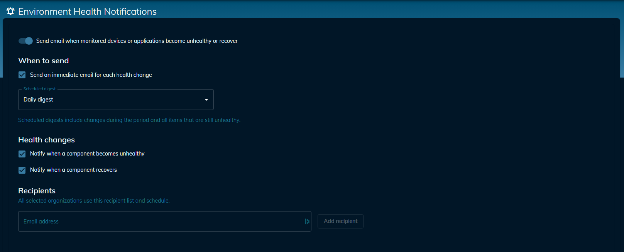
- Enable the Send email when monitored devices or applications become unhealthy or recover toggle at the top of the page.
- Configure the sections below, then select Save settings in the bottom right corner of the page.
Choosing When to Send
- Locate the When to send section.
- Select the Send an immediate email for each health change checkbox to receive an email as each health change is detected.
- Open the Scheduled digest dropdown and select one of the following:
- Daily digest
- Weekly digest
- Monthly digest
- Note that scheduled digests include changes that occurred during the period as well as all items that are still unhealthy.
- Select Save settings.
Selecting Which Health Changes to Notify On
- Locate the Health changes section.
- Select the Notify when a component becomes unhealthy checkbox to receive notifications when a component enters an unhealthy state.
- Select the Notify when a component recovers checkbox to receive notifications when a component returns to a healthy state.
- Select Save settings.
Adding Recipients
- Locate the Recipients section.
- Enter the recipient's address in the Email address field.
- Select Add recipient.
- Repeat steps 2 and 3 for each additional recipient you want to enroll.
- Note that all selected organizations use this same recipient list and schedule.
- Select Save settings.
Selecting Organizations to Monitor
- Locate the Organizations to monitor section.
- Select the checkbox next to each organization you want monitored.
- Select Save settings.
What Gets Monitored
Environment Health Notifications cover the following health states:
- Elastic process health - The state of the Elastic process on the monitored device.
- Agent health - The state of the Agent on the monitored device.
- Fleet health - The state of Fleet for the monitored device.
- Endpoint health - The state of the Endpoint for the monitored device.
- Individual integration health - The state of each individual integration, reported separately from its parent device or application.
What's Included in a Notification Email
Each notification email includes the following details:
- Client - The organization the affected device or application belongs to.
- Device or application - The monitored item whose health changed.
- Affected component - The specific component that changed state.
- Previous and current state - The state the component was in and the state it is in now.
- Error summary - A sanitized summary of the reported error.
- First-observed time - When the state was first observed.
- Portal link - A link to the relevant page in the AgileBlue Portal.
How Health Notifications Are Processed
- Health state changes are collected as they are observed and processed on a recurring 30-minute cycle.
- Before a notification is sent, the current state is verified so that resolved conditions are not reported as active.
- Parent and integration failures are correlated so that a single underlying failure is not reported as multiple unrelated issues.
- Duplicate notifications for the same condition are suppressed.
- Degraded and unknown states are held for a configurable grace period before a notification is sent, so brief fluctuations do not generate email.
- Failed email deliveries are retried.
- A separate check identifies devices and applications that have stopped reporting check-ins or state entirely.
Turning Off Notifications
- Navigate to Settings > Configuration > Health Notifications.
- Turn off the Send email when monitored devices or applications become unhealthy or recover toggle at the top of the page.
- Select Save settings.
- Confirm the toggle remains off. No further health notification emails will be sent to the recipients on the list.
Need Help?
If you have any questions about this feature, please don't hesitate to reach out. AgileBlue Support is also here to assist with any setup questions and can be reached at support@agileblue.com or by submitting a ticket.